A safe OpenClaw Docker setup, read from the inside out
By Christophe Paka · Facts checked on 7 November 2026
You ran the setup script, the Control UI opens, and everything works. But a laptop elsewhere on your home network can open it too. The project's Compose file, as shipped, opens the Gateway's port on every network address of your machine.
That Gateway holds your model keys and can act for you, so who reaches it matters. This OpenClaw Docker setup fixes it with one small file. The figure below shows the target: one folder in, one port out, and a short list of paths the container never sees. The steps need a terminal; with no terminal, the book's desktop app path is the place to start.
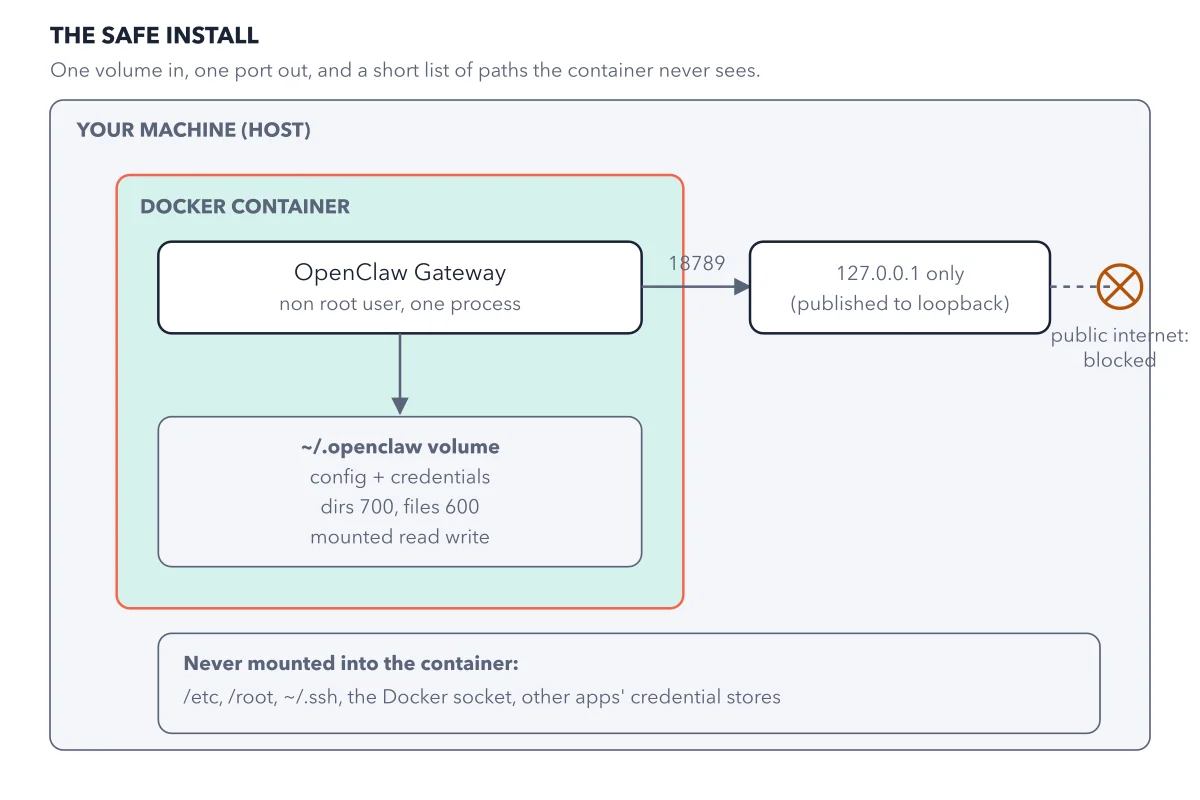
How to read this figure
Start with the outer box, your machine. The big box is the host, the computer OpenClaw runs on. Use a spare machine or a container, never your work laptop, since the assistant can reach whatever its machine holds. Inside sits the Docker container, a walled space for one program.
Find the Gateway inside the container. The Gateway is the program that connects your chats to the model and runs the actions the model asks for. It runs as one program, under a plain user named
node. It is not root, the account with full rights over the machine, and the Gateway does not get those full rights.Follow the arrow down to the volume. One folder comes in:
~/.openclaw, mounted read write. It holds the config and the credentials, the secrets that prove who you are to a service. The figure's "dirs 700, files 600" are file permissions: only your own user can open them, and no other account on the machine can.Follow port 18789 out to the right. A port is a numbered door on a computer; the Gateway uses 18789. It is published to
127.0.0.1only: the loopback address, the machine's own address, unreachable from outside. The crossed circle means the public internet gets nothing. Proxies change this picture, as the reverse proxy mistake shows.Read the never mounted list. The bottom panel lists what stays out:
/etc,/root, your SSH keys in~/.ssh, the Docker socket (Docker's control line) and other apps' saved passwords. Mount none of them, and the container cannot read them.
Key takeaways
- Publish port 18789 on
127.0.0.1only, never on every address of the machine. - After any Compose change, run
docker compose psand read the PORTS column before you trust it. - Test from a second device on your home network: it should not connect.
Try this: install from the official image, published to loopback
You need a terminal on the OpenClaw machine with Docker Desktop or Docker Engine and Compose, plus git, the tool developers use to download code. Have your written permission scope next to you. Each line in code is typed into the terminal, then Enter.
- Download the project with
git clone https://github.com/openclaw/openclaw.git, then typecd openclawto move into the folder it made. - Choose the published image, so nothing is built on your machine:
export OPENCLAW_IMAGE="ghcr.io/openclaw/openclaw:latest". Then run./scripts/docker/setup.shand answer onboarding's questions about your model provider. - In that same folder, create a plain text file named
docker-compose.override.yml. Compose reads it on top of the project's own file. It holds four lines, each indented two spaces more than the one before:services:, thenopenclaw-gateway:, thenports: !override, then- "127.0.0.1:18789:18789". The!overridetag replaces the port list instead of adding to it. - Restart with
docker compose up -d openclaw-gateway, then rundocker compose ps. If you see0.0.0.0:18789, Compose missed your file: check its name and folder. - Check that it is alive with
curl -fsS http://127.0.0.1:18789/healthz, then open the Control UI on the same machine and paste the Gateway token into Settings. - From a second device on the same home network, try the machine's local address on port 18789.
Expected result: docker compose ps shows 127.0.0.1:18789 only, the Control UI opens on the machine, and the second device gets nothing.
Questions readers ask
Do I need a Mac mini for OpenClaw?
No. Any small 64 bit computer you can spare will do, and OpenClaw publishes no minimum for processor, RAM or disk. People buy Macs for iMessage, which works only from a Mac, and to run bigger models on the machine itself. Without either need, a spare laptop or a mini PC works.
Why can other devices on my network reach my OpenClaw?
Because the project's Compose file, as shipped, opens 18789, plus 18790 for its bridge and 3978 for Microsoft Teams, on every network address of your machine. Add the override file that publishes 18789 on 127.0.0.1 only, restart, and check the PORTS column.
Where is the OpenClaw Gateway token in Docker?
The setup script creates it and saves it as OPENCLAW_GATEWAY_TOKEN in .env, a hidden file in the openclaw folder. The Control UI and other clients must present this secret. Paste it into the Control UI's Settings, and never share the file.
How do I update OpenClaw in Docker without losing the safe port?
Updates pull a newer image, and your ~/.openclaw folder stays. To stay on one release, put its version tag in place of latest. The setup script never reads your override file, so after any rerun the ports are open on every address again: restart with docker compose up -d openclaw-gateway and check docker compose ps.
Sources: Docker install (OpenClaw docs); Network exposure (OpenClaw docs).
This figure is from OpenClaw Made Crystal Clear, chapter 4.
The chapter builds the idea step by step, with recipes you can follow, a Try it to check yourself, and every source.
Get the book