Claude Code setup: six steps from a bare terminal to a reviewed commit
By Christophe Paka · Facts checked on 23 October 2026
"How to ensure Claude Code can't delete anything?" is one of the most asked beginner questions. The readers who lost work shared one detail: they had no copy to go back to. Most guides jump straight to a big first prompt.
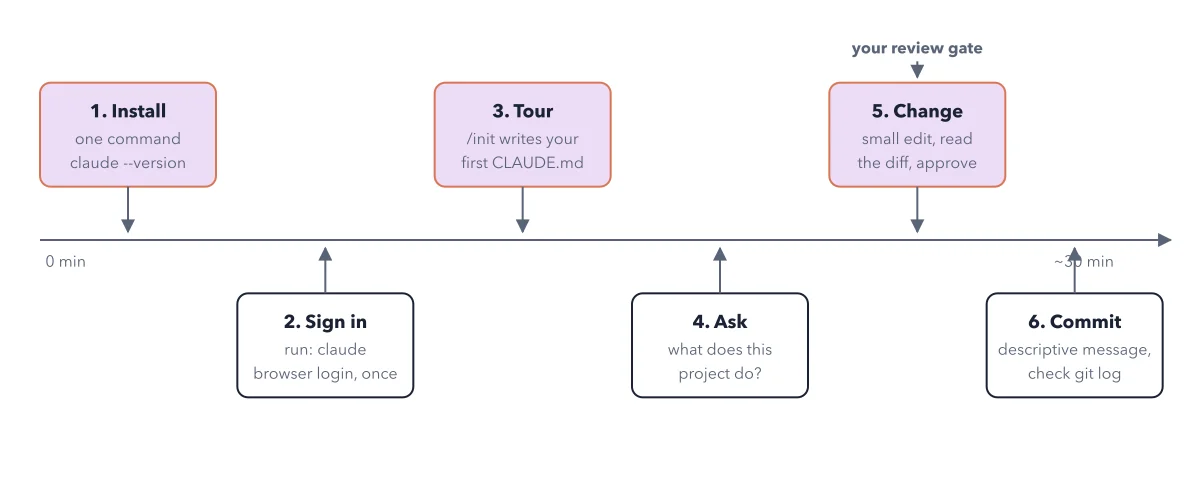
A safe Claude Code setup starts with that copy instead. The figure below lays the whole first hour on one line: three steps you do once, then three you repeat for every change. Read it as a clock from 0 minutes to about 30.
How to read this figure
Read the line as a clock. The arrow runs left to right, from 0 min to about 30 min. Six boxes sit on it, alternating above and below the line. Steps 1 to 3 you do once. Steps 4 to 6 are the loop you repeat for every change.
Box 1, above: Install. One command installs Claude Code. Then
claude --versionchecks it. A command is one line you type in the terminal, the text window where you type commands. On a Mac, open the Terminal app; on Windows, open PowerShell from the Start menu. Never used a terminal? The desktop app does the same steps with buttons.Box 2, below: Sign in. A browser login, once, with a paid plan or a Claude Console account. Then a safety commit: a commit is a saved copy of your files in git, free software that keeps a folder's history. You type no git commands: you ask Claude in plain words, and it runs them. That copy is your way back.
Box 3, above: Tour.
/initwrites your first CLAUDE.md. That is a plain text file of project notes that Claude Code reads at the start of every session. You skim it and approve.Boxes 4 and 5: Ask, then Change. Box 4 asks: what does this project do? Box 5 makes a small edit. You read the diff, which shows the lines that changed, and approve. A label above box 5 marks it: your review gate.
Box 6, below: Commit. Save the change with a descriptive message, then check git log, the list of saved points. At the end of the hour it shows two commits: the safety net from box 2 and your first change from box 5. The Try this below makes the first one.
Key takeaways
- Make a first commit before Claude changes anything, in every new project.
- Start your first sessions in Manual mode, so Claude shows each change and waits.
- Start Claude Code in a project folder, never in your home folder.
Try this: install and make your safety net
Open a terminal: the Terminal app on a Mac, PowerShell on Windows. Make an empty folder named expenses in your Documents folder. This makes the first of the two commits in the figure, the safety net. No terminal? Download the Claude desktop app, sign in and click the Code tab; you type the same prompts there.
- Install. On a Mac, Linux or WSL, paste
curl -fsSL https://claude.ai/install.sh | bashand press Enter. In plain words: download Anthropic's install script from claude.ai and run it. On Windows PowerShell, pasteirm https://claude.ai/install.ps1 | iexinstead. Then typeclaude --version. Expected: a version number followed by (Claude Code). - Go into your folder. Type
cdand a space, drag the expenses folder onto the terminal window, and press Enter; cd means change directory. Then typeclaude --permission-mode manual. This starts Claude Code in Manual mode, where Claude asks before each new kind of action. Expected: the line under the prompt reads manual mode on. - Type, in plain words: set this folder up as a git repository, add a README that says this is the expenses app, and make a first commit. Expected: Claude stops and asks before each git command. Approve each one. If Claude asks to install git, approve only if you want it installed.
- Check it with
! git log --oneline -1. The ! sign runs a command yourself, without Claude; this one shows the last saved point. Expected: one line, a short code and the commit's note.
Expected result: A folder with git history and its first commit, before any app file exists. That line is your way back. Your first change, later in the hour, adds the second commit.
Questions readers ask
How to ensure Claude Code can't delete anything?
Make a way back before it starts: a git repository with a first commit. Start it in a project folder, never in your home folder, because a commit saves only what is inside the folder. Begin in Manual mode, where it asks before each new kind of action.
Where do I learn Claude Code best practices as a beginner?
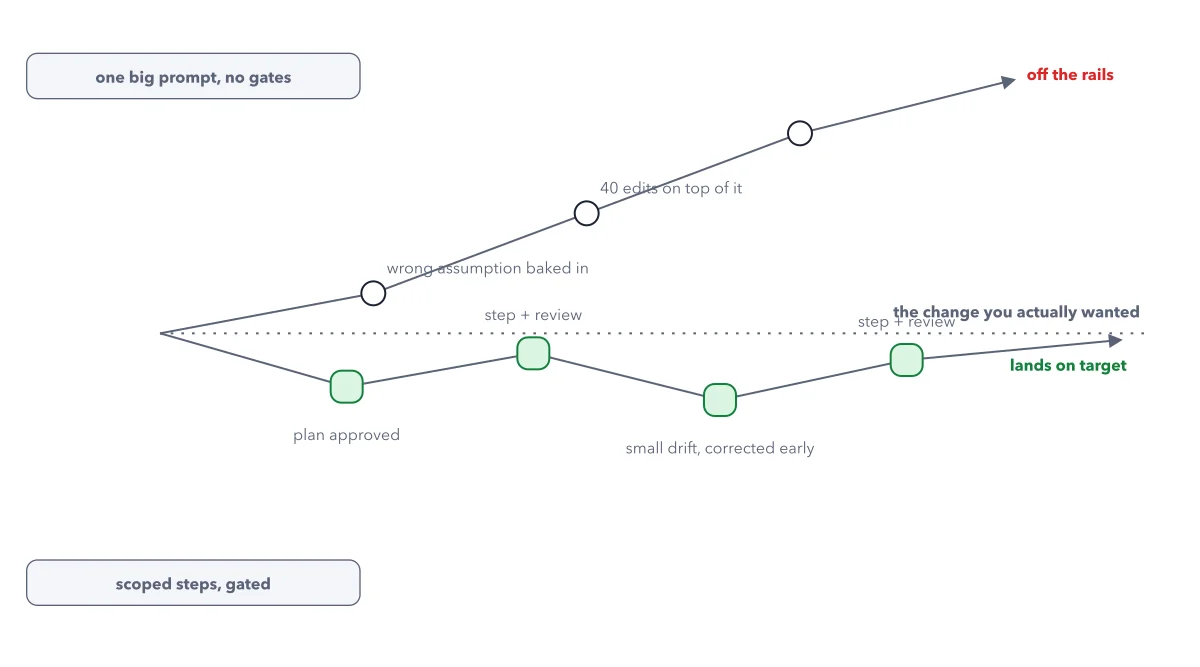
Start with one small change you read and approve, not a big feature. A giant first ask is how sessions go off the rails. The book's Claude Code guide walks this first hour as three recipes.
What if Claude Code will not start after install?
Close the terminal, open a new one, and run claude --version again. Still missing? Run the installer again. On native Windows, also install Git for Windows. If it starts but misbehaves, run claude doctor from the terminal, outside a session. It checks your install and settings.
Sources: Claude Code quickstart (Anthropic docs); Choose a permission mode (Anthropic docs); Get started with the desktop app (Anthropic docs).
This figure is from Claude Code Made Crystal Clear, chapter 3.
The chapter builds the idea step by step, with recipes you can follow, a Try it to check yourself, and every source.
Get the book