Claude Code plan mode, and why one big prompt drifts
By Christophe Paka · Facts checked on 23 October 2026
You type one request: build the whole feature. Claude starts well. Around edit twelve, a wrong guess about your code slips in, and every later edit builds on it.
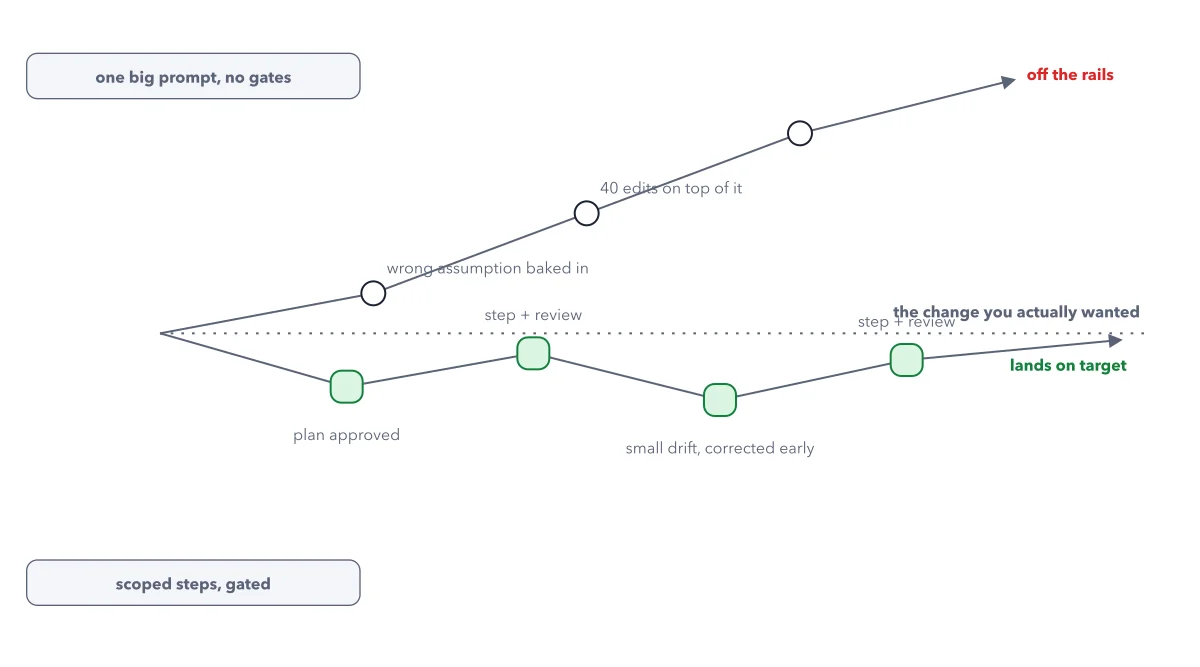
You end with code that looks right, touches files you never named, and half works. Some readers say planning is a waste of time. Claude Code plan mode earns its place on exactly this kind of task. The figure below draws the same task twice: once in one go, once in small steps with a check after each.
How to read this figure
Find the dotted line. The dotted line across the middle is the change you wanted; its label sits at the right end, just above it. Both paths start at the same point on the left. The closer a path stays to that line, the closer the result is to your goal.
Follow the top path. Its label, top left, reads one big prompt, no gates. Three white circles sit on the path. Next to the first, a label reads wrong assumption baked in; next to the second, 40 edits on top of it. The figure is a sketch, not measured data: 40 is the book's way to say many edits. The line climbs away and ends in red: off the rails.
Follow the bottom path. Its label, bottom left, reads scoped steps, gated. Each green square is a gate: you stop there and review before the next step starts. The first square is marked plan approved, the second step + review. The path dips and rises, but it never strays far from the dotted line.
Spot the small drift. The third square sits lowest, marked small drift, corrected early. The fourth, another step + review, pulls the path back up. Its label crowds the target label at the right. The path ends in green: lands on target.
Key takeaways
- Use plan mode when a change spans several files; just ask when the diff fits in one sentence.
- Approve a written plan before any edit, so a wrong guess is a word to fix, not code.
- Review each step before the next one starts, while a drift is still small.
Worked example: the task size rule on a small expenses app
The book follows one small app that adds up receipts. The task size rule says: if you can describe the diff in one sentence, just ask; if the change spans several files, plan first.
- Change the page title to My expenses. The diff fits in one sentence, so just ask, then read the diff.
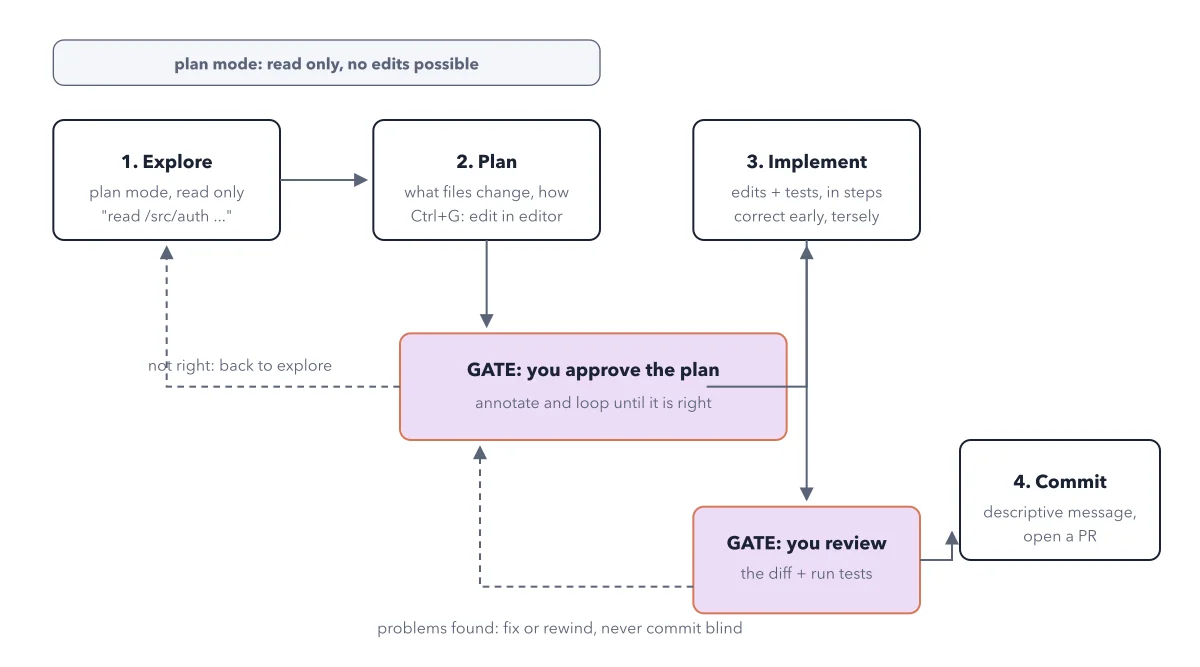
- Rename the amount column everywhere. It touches several files that other code relies on, so start in plan mode and ask: what files need to change, and how? Create a plan. The plan names the files and the changes, and Claude edits nothing until you approve it.
- Why does the total look too high this month? You are not sure what is wrong, so explore first: ask questions in plan mode before any change.
Result: Only the rename gets a full plan. The title change would waste a plan, and the bug hunt needs questions before any plan at all.
Questions readers ask
Is plan mode still worth it?
On a big change, yes. Plan mode is a setting where Claude reads your code and writes a plan, but edits no file until you approve. Mistakes are then words in a plan, not code spread over 40 edits. On a small change, a plan costs more than it saves.
How do I turn on plan mode?
Press Shift+Tab until the line under the prompt box shows plan mode on, after a pause sign. Or start the session with claude --permission-mode plan, or type /plan at the start of one prompt. Press Shift+Tab again to leave without approving. The full loop is in the four step workflow.
What should I pick when Claude shows the plan?
As a beginner, pick Yes, manually approve edits, so you see each edit before it lands. Before you answer, press Ctrl+G to open the plan in your text editor. Cut extras, add limits and fix wrong guesses, then save and close it.
Sources: Best practices (Claude Code docs); Choose a permission mode (Claude Code docs).
This figure is from Claude Code Made Crystal Clear, chapter 4.
The chapter builds the idea step by step, with recipes you can follow, a Try it to check yourself, and every source.
Get the book