Cursor modes explained on one chart
By Christophe Paka · Facts checked on 7 November 2026
You open Cursor with a small fix in mind. The Agent panel is right there, so you type the task into it. Hours later the agent has read half the project, and the change needed one line. Readers tell this story often, and the cause is the mode.
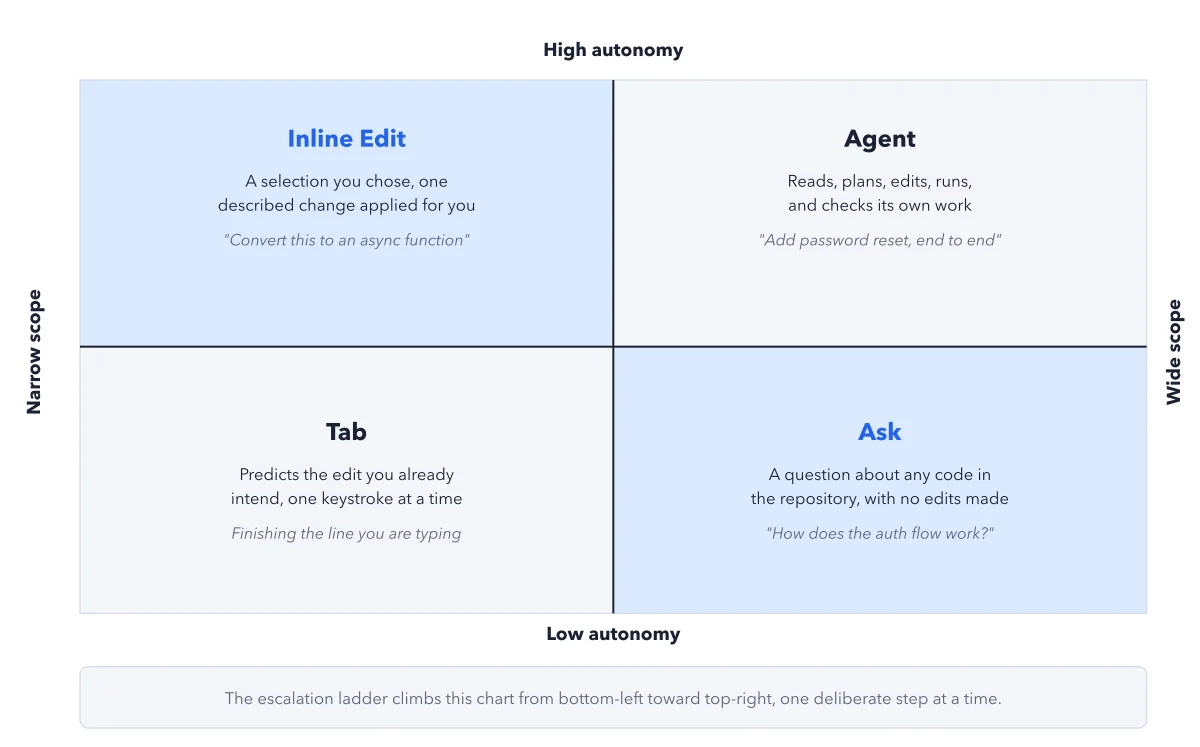
Cursor gives you four ways to work, called modes. Here are the Cursor modes explained on one chart. The figure below places Tab, Inline Edit, Ask and Agent on two questions: how much of the project can each one touch, and how much does it do before it shows you anything?
How to read this figure
Read the two axes. The horizontal axis is scope: from one selection on the left to the whole repository on the right. The vertical axis is autonomy: how much Cursor does on its own before it shows you a change. Bottom left changes the least; top right the most.
Tab, bottom left. Tab is on without you choosing it. As you type, Cursor shows its guess for your next edit in grey. Press Tab to accept it or Esc to refuse it. Its task in the figure: finishing the line you are typing.
Inline Edit, top left. You select code, press Cmd+K (Ctrl+K), describe one change and press Return. The change stays inside your selection. Its task: convert this to an async function. If the change needs more files, Cmd+L hands the selection to Agent.
Ask, bottom right. Ask can read any file in the repository, but it never changes one. That is why it sits wide on scope but low on autonomy. Its task: how does the auth flow work? Switch to it with Shift+Tab or the mode picker.
Agent, top right. Agent reads, plans, edits several files, runs commands and checks its own work. Open it with Cmd+I (Ctrl+I). Its task: add password reset, end to end. It does the most on its own, so it leaves you the most to review.
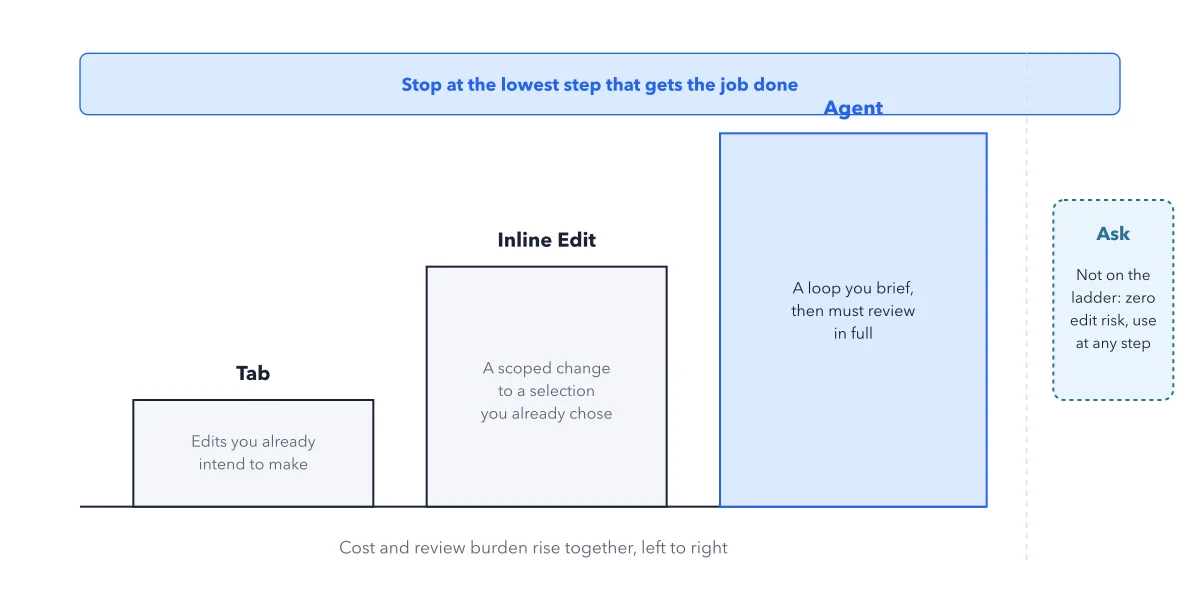
Read the note under the chart. The note says to climb from bottom left toward top right one step at a time. Start with the smallest mode that does the job, and move up only when it falls short. That habit is the escalation ladder.
Key takeaways
- Pick the smallest mode that does the job; bigger modes cost more and leave you more to review.
- Use Ask freely to understand code first: it never edits, so it costs you no review.
- Hand a selection to Agent with Cmd+L only when the change needs more files.
Try this: one task per mode on a small project
Open any small project in Cursor and try each mode once, from small to large.
- Tab: start a line inside a function. Read the grey guess, then press Tab to accept it or Esc to refuse it.
- Inline Edit: select one function, press Cmd+K, type "Add a comment that explains what this function checks" and press Return.
- Ask: open the Agent panel with Cmd+I, press Shift+Tab until the mode reads Ask, and type "How does the authentication flow work?"
- Agent: switch back to Agent only for a task that touches several files, and read the whole diff before you accept it.
Expected result: You accepted or refused one guess on purpose, saw one change stay inside its selection, and got one answer with no diff, because Ask never edits.
Questions readers ask
What is the difference between Ask and Agent in Cursor?
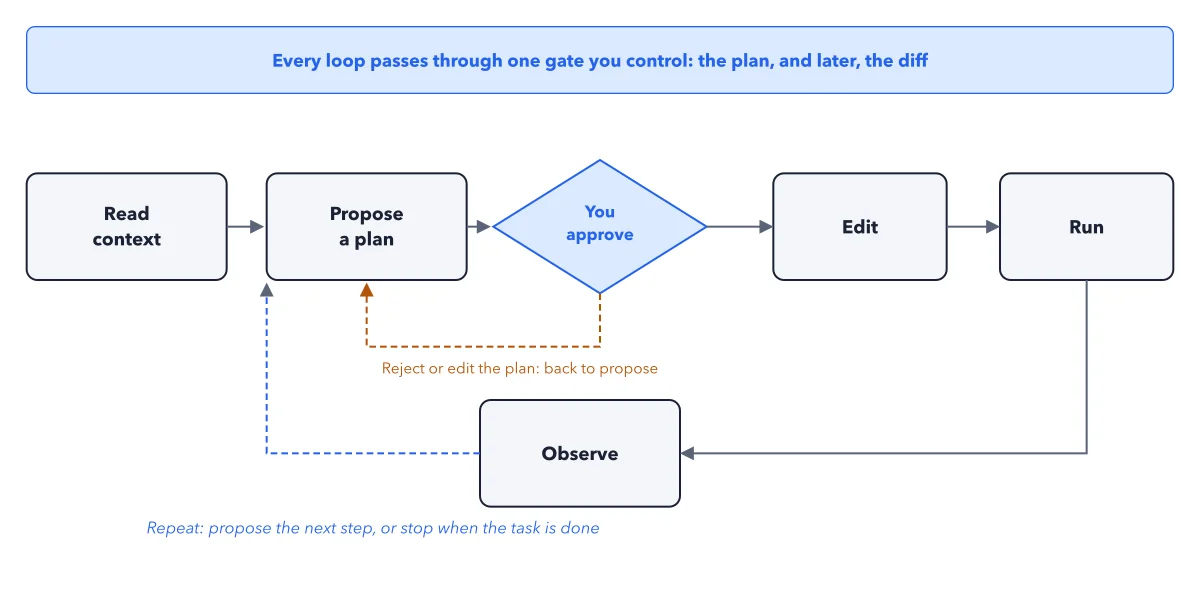
Ask is the mode for questions: it reads any file and never changes one, so there is nothing to review. Agent works in a loop: it reads files, plans, edits them and runs commands until the task is done. When an Ask answer shows that code must change, switch to Agent.
Is plan mode still useful?
Yes, for some tasks. Plan Mode makes Agent write a plan you can read and edit before it changes any file. Cursor says it works best for a feature that could be built several ways, a change across many files, unclear requirements, or a design choice you want to review. Skip it for small or familiar edits.
How do I switch modes in Cursor?
In the chat box, Shift+Tab cycles through the modes, or you pick one from the mode picker. Tab needs no switch: it is on while you type. Inline Edit opens on a selection with Cmd+K, or Ctrl+K on Windows and Linux.
Sources: Agent overview (Cursor docs); Tab (Cursor help); Ask mode (Cursor help).
This figure is from Cursor Made Crystal Clear, chapter 2.
The chapter builds the idea step by step, with recipes you can follow, a Try it to check yourself, and every source.
Get the book