n8n webhook test vs production: one node, two URLs
By Christophe Paka · Facts checked on 23 October 2026
A webhook is an address a service calls when something happens, such as a new order, and the call starts your workflow. Yours fires every time while you click Listen for Test Event. You publish the workflow, hand the address to the shop, and wait. Nothing. No run, no error, no orders.
Hours go into checking the shop, the server and the payload. The cause is often the address itself: the n8n webhook test vs production split.
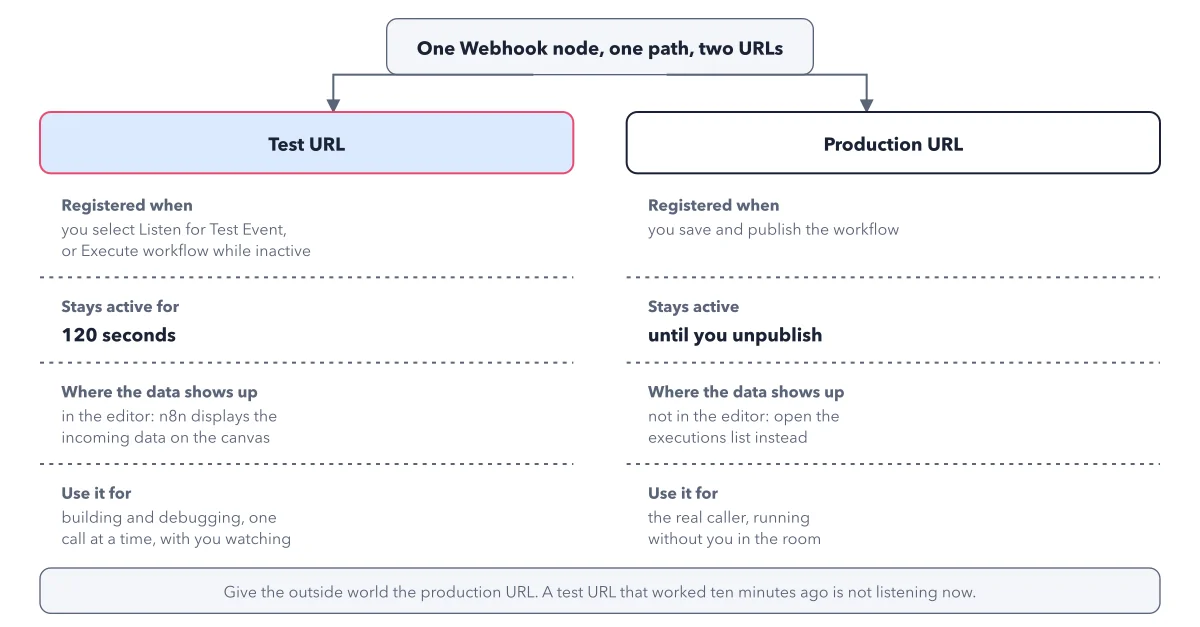
The figure below puts the two URLs of one Webhook node side by side: when each starts, how long it listens, and where its data shows up.
Use this diagram on your site
Free to share in your blog post, docs, course or slides, as long as the credit link stays. Paste the code below where the figure should go.
How to read this figure
Start at the top box. One Webhook node, one path, two URLs. The path, such as orders, is the same. The two addresses differ in one part: test calls use
/webhook-test/and production calls use/webhook/.Read the Registered when row. The test URL starts when you select Listen for Test Event, or Execute workflow while the workflow is not published. The production URL starts when you save and publish the workflow.
Compare how long each listens. The test URL stays active for 120 seconds. The production URL stays active until you unpublish. That short window is why a test URL that worked ten minutes ago is not listening now.
Find where the data shows up. Test calls show on the canvas, so you can watch the data arrive. Production calls do not show in the editor. Open the executions list to read them.
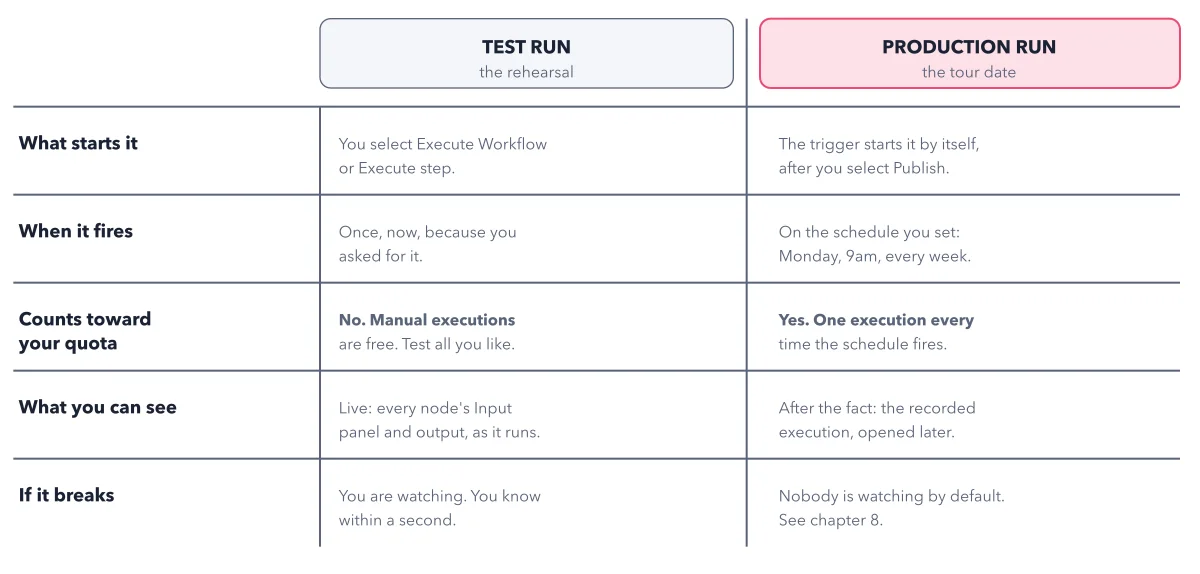
Read the bottom line. Give the outside world the production URL. The test URL is for building and debugging, one call at a time, with you watching. It is the same idea as a test run versus a production run.
Key takeaways
- Build with the test URL, then hand callers the production URL, copied fresh from the node's panel.
- Read production calls in the executions list, not on the canvas.
- Lock every production webhook before the internet can reach it: set Authentication to Header auth, with a secret header the caller must send.
Try this: send one order to each URL
Use a workflow that starts with a Webhook node set to POST, path orders, and Respond set to Immediately.
- Select Listen for Test Event and copy the Test URL. Listen first, then send.
- Within 120 seconds, send a test order to the Test URL. curl, a command you type in a terminal, does it; no terminal? A second workflow with an HTTP Request node can call the URL. Watch the canvas.
- Publish the workflow and copy the Production URL from the node.
- Send the same order to the Production URL, then open the workflow's Executions tab.
Expected result: The test call shows on the canvas. The production call leaves the canvas quiet and shows as a new execution in the list. Send to the Test URL later without listening, and nothing answers.
Questions readers ask
Why does my n8n webhook work in test but not in production?
Check which address the caller has. The test URL listens for 120 seconds only, after Listen for Test Event. The caller needs the production URL, with /webhook/ in the path, and the workflow must be published.
My production webhook ran but I see nothing on the canvas. Did it fail?
Not by itself. With the production URL, n8n does not show the data in the workflow editor. That is the documented behaviour. Open the executions list to see the call and every node's output.
Why can't Meta reach my self hosted n8n webhook on localhost?
Localhost means your own computer, and outside services cannot reach it. Real callers need a public address. On n8n Cloud there is nothing to do. Testing at home, a tunnel (a service that gives your computer a temporary public address) is fine for a day; n8n says it is not safe for production. On your own server, use a domain with HTTPS, the padlock form of an address, and tell n8n that address with the N8N_WEBHOOK_URL setting.
Sources: Webhook node (n8n docs); Webhook workflow development (n8n docs); Webhook common issues (n8n docs).
This figure is from n8n Made Crystal Clear, chapter 5.
The chapter builds the idea step by step, with recipes you can follow, a Try it to check yourself, and every source.
Get the book