The Supabase dashboard as a floor plan of nine rooms
By Christophe Paka · Facts checked on 23 October 2026
Your app works. An AI tool built most of it, and now you ask the question every builder asks on Reddit: how do I check that a Supabase app is safe before launch? You open the Supabase dashboard and see a long side menu. Which page holds the answer?
Click around at random and you can miss the one page that shows a table anyone can read.
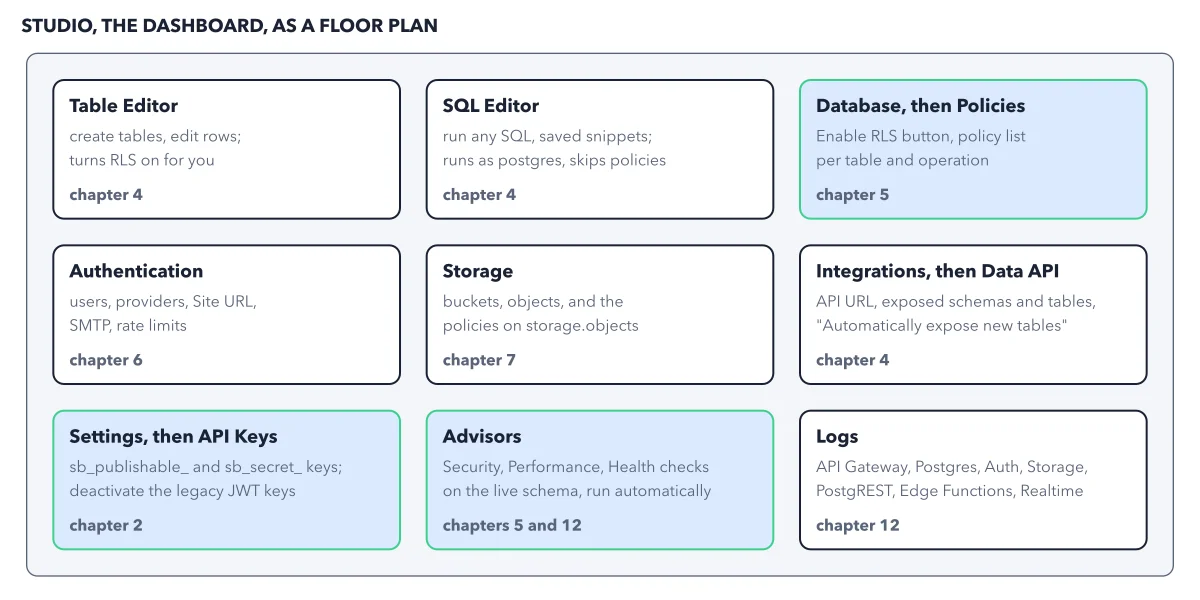
The figure below draws the dashboard as a floor plan. Each page is a room, each room names the job it does, and three rooms are marked as the ones to visit before every launch.
How to read this figure
Start with the two editors. The top row opens with the Table Editor and the SQL Editor. The Table Editor shows tables like a spreadsheet and turns Row Level Security (RLS) on for each table it makes. The SQL Editor runs any SQL, but it runs as the postgres role, so it skips every policy.
Visit the first green room: Policies. Database, then Policies, lists each table with its RLS state and its policies, one per operation. A policy is the rule that decides which rows a role may see. Open each one and read it aloud: who may do what to which rows.
Walk the middle row. Authentication holds users, sign in providers, the Site URL, the mail sender and rate limits. Storage holds buckets and files. Integrations, then Data API, holds the API address, the exposed schemas and the switch Automatically expose new tables, which you leave off.
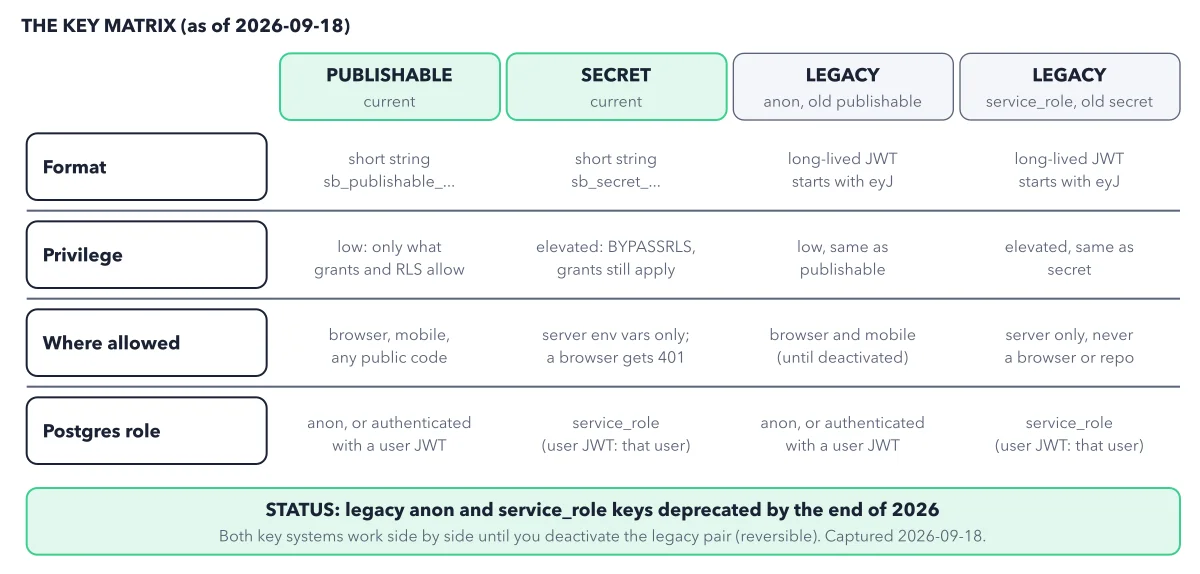
Check the keys in Settings. Settings, then API Keys, is the second green room. It shows the keys that begin
sb_publishable_andsb_secret_. Your app should hold only the publishable one. The legacy JWT keys, which begineyJ, can be switched off here.End at Advisors and Logs. Advisors is the third green room. It runs Security, Performance and Health checks on your live schema. A table with RLS off shows as the error Table publicly accessible. Logs holds the records of each service, from the API gateway to Realtime, for when something breaks.
Key takeaways
- Before every launch, open Policies, API Keys and Advisors, in that order, and fix every error you find.
- Never trust rows you see in the SQL Editor; it skips policies, so test the way your app asks.
- Leave Automatically expose new tables off, and grant each table on purpose.
Try this: a five minute launch check, no code needed
Open your project in the dashboard. You need no terminal for these steps.
- Open Advisors, then Security Advisor. Read the list of errors and warnings.
- Open Database, then Policies. Check that every table shows RLS on.
- Still in Policies, open each policy and look for the word
user_metadatain its text. That field holds profile details, such as a name, that each user can edit, so a rule that reads it is a rule anyone can bend. - Open Settings, then API Keys. Confirm your app holds only the key that begins
sb_publishable_, and no key that beginseyJ. - Open Integrations, then Data API, and check that Automatically expose new tables is off.
Expected result: A clean Security Advisor shows no errors, every table shows RLS on, and only the publishable key lives in your app. If one step fails, fix it before real users arrive.
Questions readers ask
How do I check if my Supabase app is safe before launch?
Start in the dashboard. The Security Advisor lists risky settings, such as a public table with RLS off. Then open Policies and read each policy aloud. Then open API Keys and make sure the app holds only the publishable key. For a test from outside, see why a query comes back empty.
Why can't I see my Lovable Cloud project in the Supabase dashboard?
Lovable runs that Supabase project for you, so it is not in your dashboard and these checks cannot run on it. Until you move it to a project you own, paste this question to Lovable: "Does every table have RLS on, with one policy per operation that names its role? List any policy with using (true) or user_metadata." A policy with using (true) shows every row to everyone, so on private data any hit in the answer is a bug to fix.
Is Studio the same thing as the Supabase dashboard?
Yes. Studio is the name of the dashboard app. When you run Supabase on your own machine with the CLI, the same Studio opens at a local address, so the floor plan holds there too.
Sources: Database advisors (Supabase docs); Tables and data (Supabase docs); Securing your API (Supabase docs).
This figure is from Supabase Made Crystal Clear, chapter 3.
The chapter builds the idea step by step, with recipes you can follow, a Try it to check yourself, and every source.
Get the book