Docker exec vs docker run: what happens when you exit
By Christophe Paka · Facts checked on 7 November 2026
You start a container with a shell, look around, and type exit. Your terminal comes back, but the container is gone from docker ps. Next time you get into a container another way, type the same exit, and it keeps running. Same word, opposite result.
That is the whole story of docker exec vs docker run. The difference is which process your terminal is attached to. The figure below shows it in three panels, so you can predict what leaving will do before you press Enter.
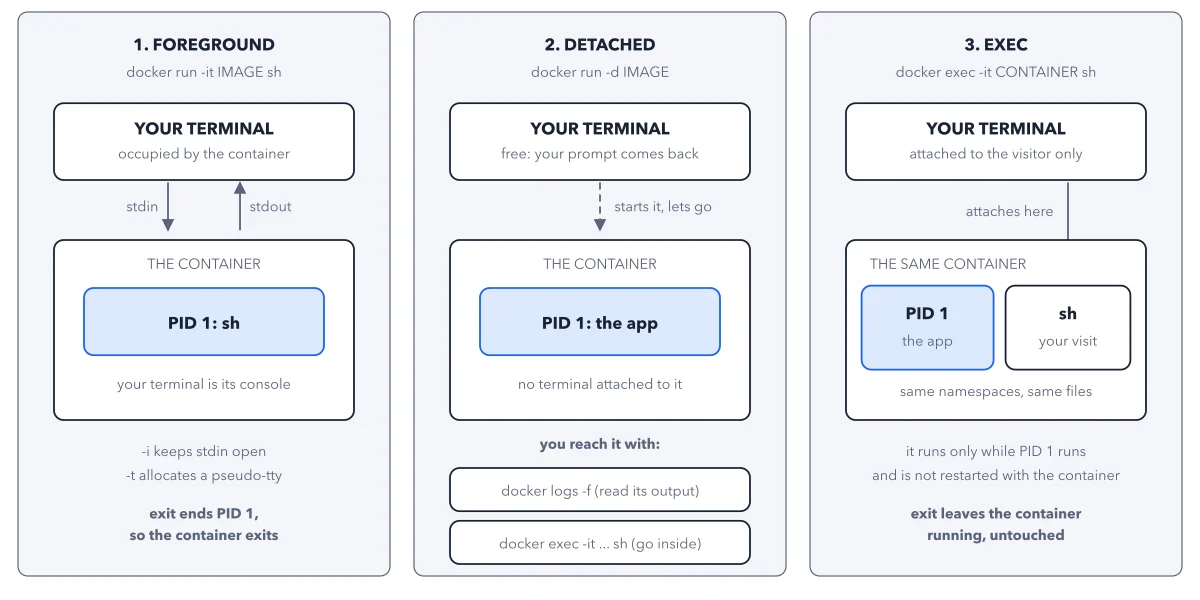
How to read this figure
Panel 1: foreground, your shell is PID 1. With
docker run -it IMAGE sh, the shell is the container's main process, called PID 1. Your terminal is its console. The-iflag keeps your typing connected and-tadds a fake terminal. Typingexitends PID 1, so the container exits too.Panel 2: detached, nothing attached. With
docker run -d IMAGE, Docker starts the app as PID 1 and lets go. Your prompt comes back at once and no terminal is attached. The panel lists the two ways in:docker logs -freads its output, anddocker exec -it ... shgoes inside.Panel 3: exec, a visitor joins.
docker exec -it CONTAINER shstarts a second process, your visit, next to PID 1. It sees the same files as the app. Your terminal attaches to the visitor only, never to the app.Read the bold line under each panel. Panel 1 says exit ends PID 1, so the container exits. Panel 3 says exit leaves the container running, untouched. Panel 2 has no exit line because no terminal is attached.
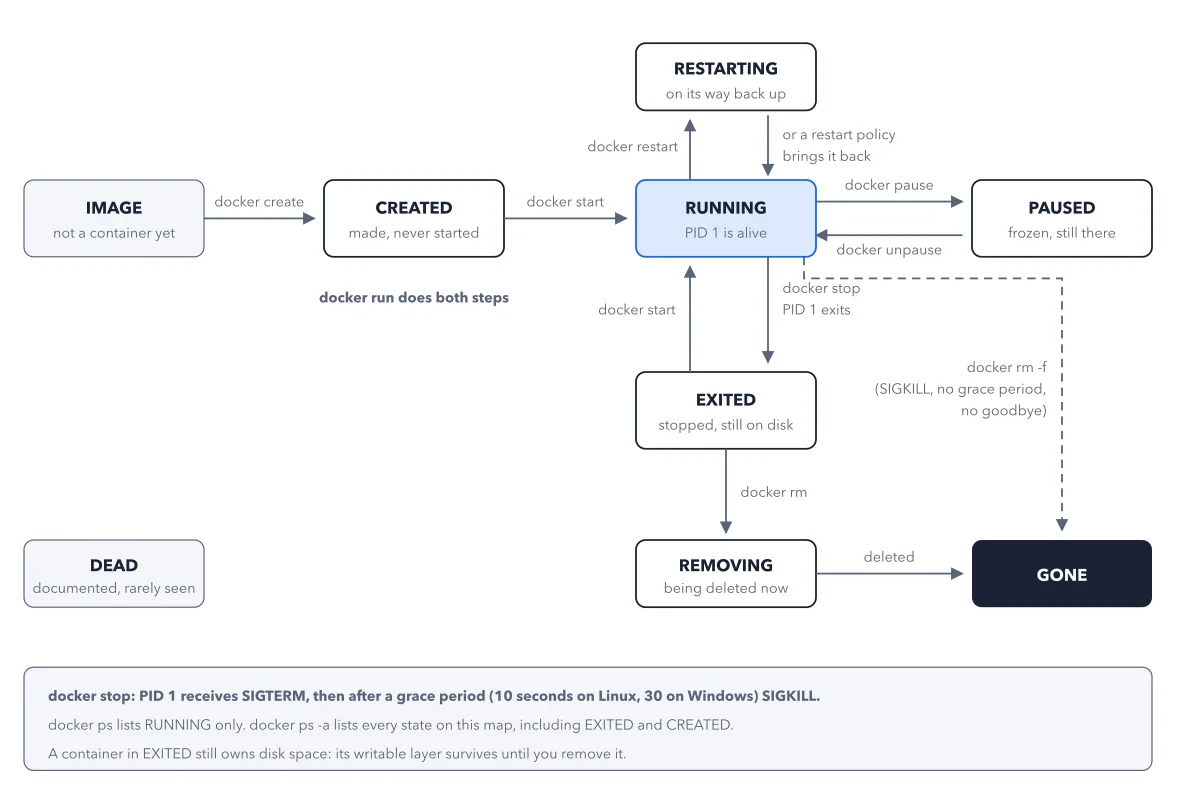
Mind the limit on the exec panel. An exec process runs only while PID 1 runs, and it is not restarted if the container restarts. So you cannot visit a container that has stopped; see the container lifecycle for the states a container moves through.
Key takeaways
- To get in and out safely, start the container with
-d, then visit withdocker exec -it NAME sh. - Before you type exit, ask what your shell is: PID 1 means the container stops, a visitor means nothing changes.
- Use
docker logs -f NAMEto watch a detached container without going inside; Ctrl+C stops following, not the container.
Try this: leave a container without stopping it
You need Docker installed, a terminal, and nothing else using port 8080 on your machine.
- Start a web server in the background:
docker run -d --name webby -p 127.0.0.1:8080:80 docker/welcome-to-docker. You get one long container ID and your prompt returns at once. - Confirm it runs with
docker ps. One row shows webby with STATUS Up. - Go inside with
docker exec -it webby sh, then typels /. You see a prompt inside the container and the image's own folders. - Type
exit, then rundocker psagain.
Expected result: webby still shows Up. Your shell was a visitor, not PID 1, so leaving changed nothing. If the exec step says sh was not found, the image ships no shell.
Questions readers ask
Why does my container stop when I type exit?
You started it with docker run -it and a shell, so that shell is the container's main process. When the main process ends, the container ends. To leave without stopping it, start the container with -d and use docker exec -it to get inside.
How do I run a command inside a running container?
Use docker exec. For a shell, run docker exec -it CONTAINER sh. The command runs as an extra process beside the app, with the same files, and it only runs while the container's main process is running.
Can I use docker exec on a stopped container?
No. An exec process only runs while the container's primary process is running, and it is not restarted if the container restarts. Start the container first, then exec.
What does -it mean in docker run?
Together they give you a working shell inside the container. The -i flag keeps your typing connected, and -t adds a fake terminal. Without them, a container holds your terminal or runs detached with no typing at all.
Sources: docker container run reference (Docker docs); Docker overview (Docker docs).
This figure is from Docker Made Crystal Clear, chapter 3.
The chapter builds the idea step by step, with recipes you can follow, a Try it to check yourself, and every source.
Get the book